SOLO Mode Overview
With AI-driven at its core, SOLO mode enables AI to autonomously plan and execute the entire development process from requirement understanding, code generation, testing, to result preview and deployment.
In SOLO mode, you can input requirements through various ways, such as natural language descriptions, voice interactions, or uploading local files. The AI will independently break down tasks and execute them efficiently, greatly simplifying and streamlining the development process.
Enable SOLO mode
Use the mode switch toggle in the top-left corner to switch TRAE to SOLO mode.
UI
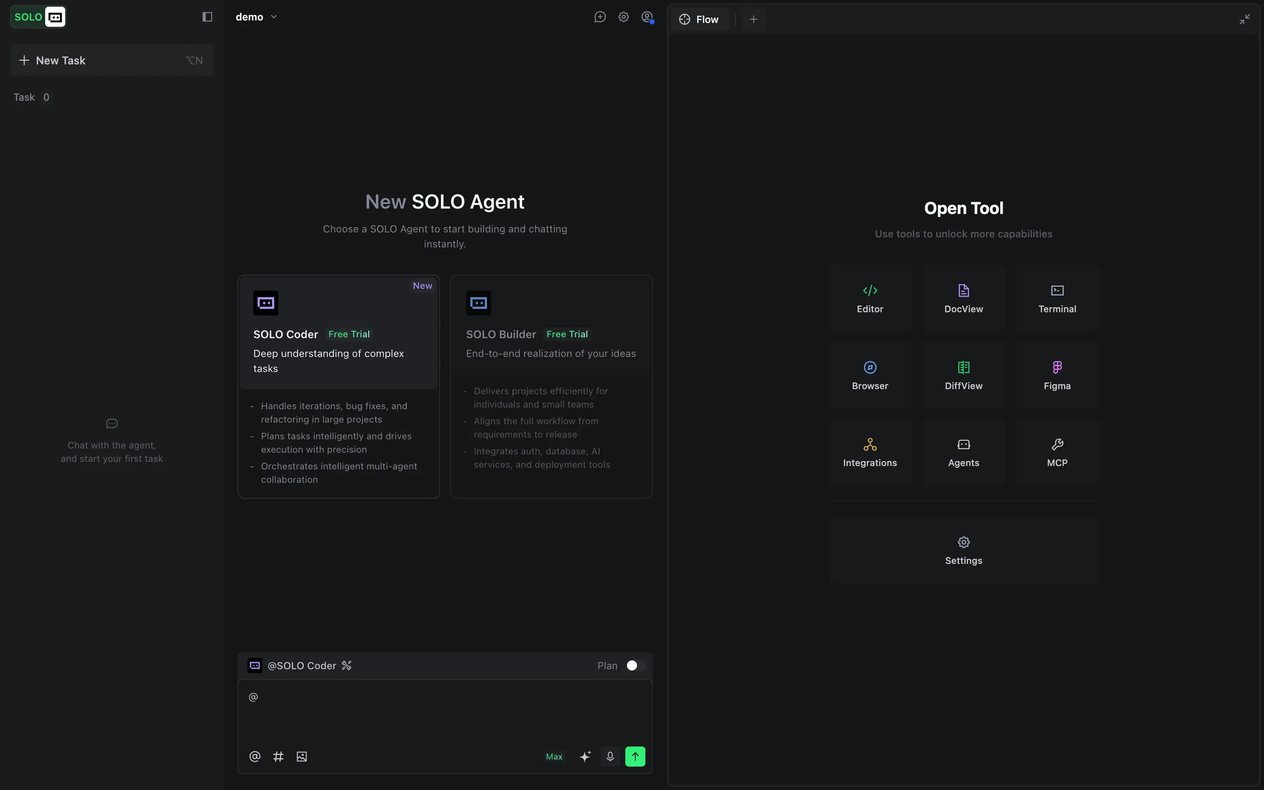
The interface of SOLO Mode is shown below. From left to right, it consists of the task management panel, the AI chat panel, and the tool panel.
Features
SOLO Coder
SOLO Coder is an agent designed for complex project development. It enables you to efficiently complete the full development workflow, from requirements iteration to architecture refactoring. Through intelligent task planning and precise execution mechanisms, SOLO Coder can automatically advance development after the plan is confirmed. At the same time, you can also autonomously orchestrate multiple agents to form your own AI team, achieve multi-role collaborative workflow, and accelerate project implementation. For more information, refer to SOLO Coder.
SOLO Builder
SOLO Builder is an agent that helps you build professional and fully functional web applications. You only need to describe your requirements in natural language, and SOLO Builder will automatically take care of the rest, including selecting the most suitable AI model for the task, analyzing your needs, generating a PRD, writing code, and producing a previewable result. For more information, refer to SOLO Builder.
Task management
The task management feature breaks the limitations of traditional serial task execution, supports managing multiple tasks simultaneously within a single project, and enhances overall development efficiency. For more information, refer to Task management.
Tool panels
SOLO mode provides a range of built-in tools, including editor, documentation viewer, and browser, and more. You can use these tools to unlock more capabilities. For more information, refer to Tool panels.
Figma to code
AI can automatically parse information from Figma design files and convert design elements into executable code. You can generate code for a complete page by selecting the entire frame, or precisely select individual components (such as buttons, forms, or cards). After adding the selected frame or element to the chat and sending it to AI, the AI will begin generating the corresponding code snippet. For more information, refer to Figma to code.
Integration services
- Supabase service: Supabase is an open-source Firebase alternative. TRAE SOLO enables you to connect your projects to Supabase to manage both your front-end user interface and your back-end database easily. This means you can design your app's screens while simultaneously setting up a cloud-based PostgreSQL database. For more information, refer to Supabase service.
- Deployment service: Deploy web applications online through the third-party service Vercel. After deployment, you can share your app with others via a link. If the app's content is later updated, you can deploy a new version accordingly. For more information, refer to Deployment service.
- AI service: Configure AI services in SOLO mode and integrate them into your web applications as needed. For more information, refer to AI services.
- Payment service: To help you efficiently implement the payment service while building your app, SOLO integrates Stripe—a comprehensive payment solution. You can use the Stripe API as a callable tool to integrate payment services quickly and flexibly into your applications. For more information, refer to Payment service.
DiffView
After completing changes in your project, you can click the Open Diff button in the chat panel to open the DiffView window. This window displays the number of affected files, the total lines of code changed, and a list of modified files. You can click any file to view its specific changes, which are presented in a diff view.
Automatic folding of chats
In Settings > Conversation > To-Do List, you can enable or disable the Conversation Auto-Fold option for SOLO Mode. When this feature is enabled, completed tasks in the chat panel will be automatically folded and summarized. You can expand any folded section to view its detailed content.
Folded:
Expanded: