Deployment Service
Currently, TRAE supports deploying web applications online through the third-party service Vercel. For the frameworks supported by Vercel, refer to this page.
Limitations
Deployment service is only available to SOLO Builder.
Procedure
Step 1: Initiate a deployment
When your web application is ready to deploy, you can click the Deploy button in the AI chat panel or in the top-right corner of the Browser tool to directly initiate the deployment task, or tell your deployment request to the AI to let it trigger the deployment process.
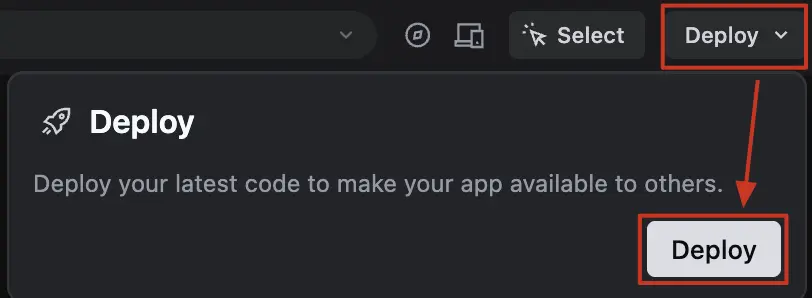
In addition, if the AI determines that your project is ready for deployment, a project deployment card will appear in the chat panel. You can initiate a deployment by clicking the Deploy button on the card.

Step 2: Complete authorization
For the first deployment, you need to complete authorization. Click the Start Authorization button in the Connect Service popup to go to Vercel and start the authorization process:
1. Click the Add Integration button.
2. In the Install TRAE panel, complete the following steps to install TRAE as an integration on Vercel:
a. Select a Vercel project that requires the TRAE integration.
b. In the section for project authorization scope setting, check the All Projects option.
- Caution: If the All Projects option is not selected, various permission issues may occur when deploying new projects later.
c. In the section for permission scope setting, check the Read and Read and Write options.
d. Click the Install button.
- After installation, you can find TRAE in the Integrations section on Vercel, as well as Vercel in the Integrations section on TRAE's account settings page.
Step 3: Complete the deployment
After authorization is complete, return to TRAE and click the Redeploy button in the Deploy panel to deploy the project to Vercel. Once deployment is complete, you can view all deployed projects in the Overview tab on Vercel.
To check all deployment records of a specific project, open the Deployments tab.
Additionally, a shareable link will be generated in the Deploy panel on TRAE, allowing you to easily share the project with others. If there are updates to the project in the future, you can click the Deploy Latest button to deploy the latest version of the project to Vercel.